

1 / 9


$68.22-$98.52
Free shipping
New 24" Curved Gaming Monitor, FHD 1080P, 180Hz Refresh Rate, 1ms Response, AMD FreeSync, Ultra-Slim Design, HDMI/DP, VESA Mountable #Black Friday
Sold by puroshop
4.5(362)
2.9K sold
Specification:Please select
 100hz-face
 180hz-Curved
  75hz-face
 180hz-face
Screen Size:Please select
22
24
Quantity:
About this shop
puroshop
4.4
12.1K Sold
10.2K+ Followers
99%24h response rate
59%Ships within 48h
80%Positive feedback
Reviews Purchased on TikTokThe monitor is great at first i had a problem with the display but i forgot you can change the display it comes with speakers and great quality 10/10 monitor but the only bad thing about it is that is barely curved
 Item: 180hz-Curved , 24April 5, 2025
 Purchased on TikTokThe monitor is great. I love it. I like how it has a custom crosshair and it has HDR for my PS five I would buy this again.
 Item: 100hz-face, 24July 11, 2025Purchased on TikTokIs exactly what I was expecting to get and a little more. The colors are slightly muted but that’s to be expected on a high refresh rate monitor for this price. Been using it for about 2-3 weeks now and haven’t had a single issue out of it yet. It even has built in speakers.
 Item: 180hz-Curved , 24October 20, 2025
4.5362 global reviews
David🪐
OfficialJ6🏆
E**y
About the product
Details
| Brand | ReHisk |
| Dangerous Goods Or Hazardous Materials | No |
| Special Features | HDMI,Dp |
| Adaptive Sync | Freesync Premium |
| Aspect Ratio | 0.6729166666666667 |
| Monitor Response Time(Ms) | 1ms |
| Resolution | Full Hd |
| Monitor Screen Size | 23-25Inches |
| Monitor Interface Type | HDMI,Dp |
| Panel Type | Va,IPS |
| Product Condition | New |
| Plug Type | US type |
| With Maganet | No |
| Battery In The Product | No |
| With Battery | No |
| Warranty Type | Manufacturer Warrenty |
Description Please note that this link contains multiple variations. Please select the product specifications you need to purchase before placing an order.🎮 Immersive Viewing ExperienceThis 24-inch curved gaming monitor features a Full HD (1920x1080) resolution and a 1800R curvature. It enhances focus and engagement, providing an immersive experience for gaming, movies, or work. The curve adapts to your field of vision, making it ideal for competitive gaming and esports.⚡ Fast Refresh Rate & Response TimeEquipped with a 180Hz refresh rate and 1ms response time, this monitor handles fast-paced action smoothly. Enjoy tear-free gaming and video playback with minimal motion blur and no screen tearing. The ultra-fast refresh rate ensures everything is fluid and sharp.🎨 Excellent Color ReproductionThe IPS panel offers deep blacks, vibrant colors, and a high contrast ratio. The wide 178° viewing angle ensures consistent picture quality. The near-frameless design maximizes screen real estate, supporting VESA 75x75mm mounting for flexibility.🔧 Connectivity & Audio FeaturesHDMI and DisplayPort inputs make connectivity easy. Built-in speakers provide basic audio functionality. The package includes a DisplayPort cable, HDMI cable, power adapter, and user manual. For any issues, contact our customer service team. Your satisfaction is our priority.
Get the Best Performance from Your MonitorHow to Set the Refresh Rate to 180Hz️ Important Notice Before You StartTo achieve 180Hz refresh rate, ALL of the following conditions must be met:A 180Hz-capable monitor
A graphics card that supports 180Hz output
A DisplayPort (DP) or HDMI 2.0 / 2.1 cable (included or recommended)
Correct system and monitor settingsIf any of these conditions are not met, the refresh rate may default to 60Hz or 120Hz.Step 1: Use the Correct CableRecommendedDisplayPort (Best Choice) – Supports 180Hz easily
HDMI 2.0 / HDMI 2.1 – May support up to 180Hz depending on deviceNot RecommendedHDMI 1.4
VGA / DVITip: For the best gaming experience, we strongly recommend using DisplayPort.Step 2: Set 180Hz on Windows PCFor Windows 10 / Windows 11Right-click on the desktop
Select Display settings
Scroll down and click Advanced display
Choose your monitor
Click Refresh rate
Select 180HzDone! Your monitor is now running at 180Hz.Step 3: Set 180Hz in Graphics Card Control PanelNVIDIA Graphics CardRight-click desktop NVIDIA Control Panel
Go to Change resolution
Select your monitor
Choose 1920×1080 / 2560×1440 (native resolution)
Select 180Hz
Click ApplyAMD Graphics CardRight-click desktop AMD Software: Adrenalin Edition
Go to Display
Select your monitor
Set Refresh Rate to 180HzStep 4: Enable 180Hz in Monitor Menu (OSD)Press the Menu button on the monitor
Go to Settings / Gaming Settings
Enable High Refresh Rate / Overclock / 180Hz Mode (if available)
Save and exitSome models require manual activation of high refresh rate in the monitor menu.Step 5: Console Users (PS5 / Xbox)PlayStation 5Supports up to 120Hz (hardware limitation)
Set path:
Settings Screen and Video Video Output Enable 120Hz OutputXbox Series X / SSupports up to 120Hz
Set path:
Settings General TV & Display Options Refresh Rate 120Hz️ 180Hz is available on PC only. Consoles are limited to 120Hz.Common Questions (FAQ)Why is my monitor only showing 60Hz?Incorrect cable used
Refresh rate not changed in system settings
Graphics card does not support higher refresh ratesDoes higher refresh rate really matter?Yes! Higher refresh rates provide:Smoother motion
Faster response in games
Reduced motion blur
Better competitive gaming performanceIs 180Hz harmful to the monitor?No. 180Hz is the native supported refresh rate of the monitor and is completely safe for long-term use.Final Tip for Best ExperienceUse DisplayPort Set refresh rate in Windows + GPU control panel Enable high refresh rate in monitor menuIf you need help, feel free to contact our customer support. We’re always happy to assist!Enjoy ultra-smooth visuals with your high refresh rate monitor!
Please note that this link contains multiple variations. Please select the product specifications you need to purchase before placing an order.🎮 Immersive Viewing ExperienceThis 24-inch curved gaming monitor features a Full HD (1920x1080) resolution and a 1800R curvature. It enhances focus and engagement, providing an immersive experience for gaming, movies, or work. The curve adapts to your field of vision, making it ideal for competitive gaming and esports.⚡ Fast Refresh Rate & Response TimeEquipped with a 180Hz refresh rate and 1ms response time, this monitor handles fast-paced action smoothly. Enjoy tear-free gaming and video playback with minimal motion blur and no screen tearing. The ultra-fast refresh rate ensures everything is fluid and sharp.🎨 Excellent Color ReproductionThe IPS panel offers deep blacks, vibrant colors, and a high contrast ratio. The wide 178° viewing angle ensures consistent picture quality. The near-frameless design maximizes screen real estate, supporting VESA 75x75mm mounting for flexibility.🔧 Connectivity & Audio FeaturesHDMI and DisplayPort inputs make connectivity easy. Built-in speakers provide basic audio functionality. The package includes a DisplayPort cable, HDMI cable, power adapter, and user manual. For any issues, contact our customer service team. Your satisfaction is our priority.
Get the Best Performance from Your MonitorHow to Set the Refresh Rate to 180Hz️ Important Notice Before You StartTo achieve 180Hz refresh rate, ALL of the following conditions must be met:A 180Hz-capable monitor
A graphics card that supports 180Hz output
A DisplayPort (DP) or HDMI 2.0 / 2.1 cable (included or recommended)
Correct system and monitor settingsIf any of these conditions are not met, the refresh rate may default to 60Hz or 120Hz.Step 1: Use the Correct CableRecommendedDisplayPort (Best Choice) – Supports 180Hz easily
HDMI 2.0 / HDMI 2.1 – May support up to 180Hz depending on deviceNot RecommendedHDMI 1.4
VGA / DVITip: For the best gaming experience, we strongly recommend using DisplayPort.Step 2: Set 180Hz on Windows PCFor Windows 10 / Windows 11Right-click on the desktop
Select Display settings
Scroll down and click Advanced display
Choose your monitor
Click Refresh rate
Select 180HzDone! Your monitor is now running at 180Hz.Step 3: Set 180Hz in Graphics Card Control PanelNVIDIA Graphics CardRight-click desktop NVIDIA Control Panel
Go to Change resolution
Select your monitor
Choose 1920×1080 / 2560×1440 (native resolution)
Select 180Hz
Click ApplyAMD Graphics CardRight-click desktop AMD Software: Adrenalin Edition
Go to Display
Select your monitor
Set Refresh Rate to 180HzStep 4: Enable 180Hz in Monitor Menu (OSD)Press the Menu button on the monitor
Go to Settings / Gaming Settings
Enable High Refresh Rate / Overclock / 180Hz Mode (if available)
Save and exitSome models require manual activation of high refresh rate in the monitor menu.Step 5: Console Users (PS5 / Xbox)PlayStation 5Supports up to 120Hz (hardware limitation)
Set path:
Settings Screen and Video Video Output Enable 120Hz OutputXbox Series X / SSupports up to 120Hz
Set path:
Settings General TV & Display Options Refresh Rate 120Hz️ 180Hz is available on PC only. Consoles are limited to 120Hz.Common Questions (FAQ)Why is my monitor only showing 60Hz?Incorrect cable used
Refresh rate not changed in system settings
Graphics card does not support higher refresh ratesDoes higher refresh rate really matter?Yes! Higher refresh rates provide:Smoother motion
Faster response in games
Reduced motion blur
Better competitive gaming performanceIs 180Hz harmful to the monitor?No. 180Hz is the native supported refresh rate of the monitor and is completely safe for long-term use.Final Tip for Best ExperienceUse DisplayPort Set refresh rate in Windows + GPU control panel Enable high refresh rate in monitor menuIf you need help, feel free to contact our customer support. We’re always happy to assist!Enjoy ultra-smooth visuals with your high refresh rate monitor!
Please note that this link contains multiple variations. Please select the product specifications you need to purchase before placing an order.🎮 Immersive Viewing ExperienceThis 24-inch curved gaming monitor features a Full HD (1920x1080) resolution and a 1800R curvature. It enhances focus and engagement, providing an immersive experience for gaming, movies, or work. The curve adapts to your field of vision, making it ideal for competitive gaming and esports.⚡ Fast Refresh Rate & Response TimeEquipped with a 180Hz refresh rate and 1ms response time, this monitor handles fast-paced action smoothly. Enjoy tear-free gaming and video playback with minimal motion blur and no screen tearing. The ultra-fast refresh rate ensures everything is fluid and sharp.🎨 Excellent Color ReproductionThe IPS panel offers deep blacks, vibrant colors, and a high contrast ratio. The wide 178° viewing angle ensures consistent picture quality. The near-frameless design maximizes screen real estate, supporting VESA 75x75mm mounting for flexibility.🔧 Connectivity & Audio FeaturesHDMI and DisplayPort inputs make connectivity easy. Built-in speakers provide basic audio functionality. The package includes a DisplayPort cable, HDMI cable, power adapter, and user manual. For any issues, contact our customer service team. Your satisfaction is our priority.
Get the Best Performance from Your MonitorHow to Set the Refresh Rate to 180Hz️ Important Notice Before You StartTo achieve 180Hz refresh rate, ALL of the following conditions must be met:A 180Hz-capable monitor
A graphics card that supports 180Hz output
A DisplayPort (DP) or HDMI 2.0 / 2.1 cable (included or recommended)
Correct system and monitor settingsIf any of these conditions are not met, the refresh rate may default to 60Hz or 120Hz.Step 1: Use the Correct CableRecommendedDisplayPort (Best Choice) – Supports 180Hz easily
HDMI 2.0 / HDMI 2.1 – May support up to 180Hz depending on deviceNot RecommendedHDMI 1.4
VGA / DVITip: For the best gaming experience, we strongly recommend using DisplayPort.Step 2: Set 180Hz on Windows PCFor Windows 10 / Windows 11Right-click on the desktop
Select Display settings
Scroll down and click Advanced display
Choose your monitor
Click Refresh rate
Select 180HzDone! Your monitor is now running at 180Hz.Step 3: Set 180Hz in Graphics Card Control PanelNVIDIA Graphics CardRight-click desktop NVIDIA Control Panel
Go to Change resolution
Select your monitor
Choose 1920×1080 / 2560×1440 (native resolution)
Select 180Hz
Click ApplyAMD Graphics CardRight-click desktop AMD Software: Adrenalin Edition
Go to Display
Select your monitor
Set Refresh Rate to 180HzStep 4: Enable 180Hz in Monitor Menu (OSD)Press the Menu button on the monitor
Go to Settings / Gaming Settings
Enable High Refresh Rate / Overclock / 180Hz Mode (if available)
Save and exitSome models require manual activation of high refresh rate in the monitor menu.Step 5: Console Users (PS5 / Xbox)PlayStation 5Supports up to 120Hz (hardware limitation)
Set path:
Settings Screen and Video Video Output Enable 120Hz OutputXbox Series X / SSupports up to 120Hz
Set path:
Settings General TV & Display Options Refresh Rate 120Hz️ 180Hz is available on PC only. Consoles are limited to 120Hz.Common Questions (FAQ)Why is my monitor only showing 60Hz?Incorrect cable used
Refresh rate not changed in system settings
Graphics card does not support higher refresh ratesDoes higher refresh rate really matter?Yes! Higher refresh rates provide:Smoother motion
Faster response in games
Reduced motion blur
Better competitive gaming performanceIs 180Hz harmful to the monitor?No. 180Hz is the native supported refresh rate of the monitor and is completely safe for long-term use.Final Tip for Best ExperienceUse DisplayPort Set refresh rate in Windows + GPU control panel Enable high refresh rate in monitor menuIf you need help, feel free to contact our customer support. We’re always happy to assist!Enjoy ultra-smooth visuals with your high refresh rate monitor!Similar Items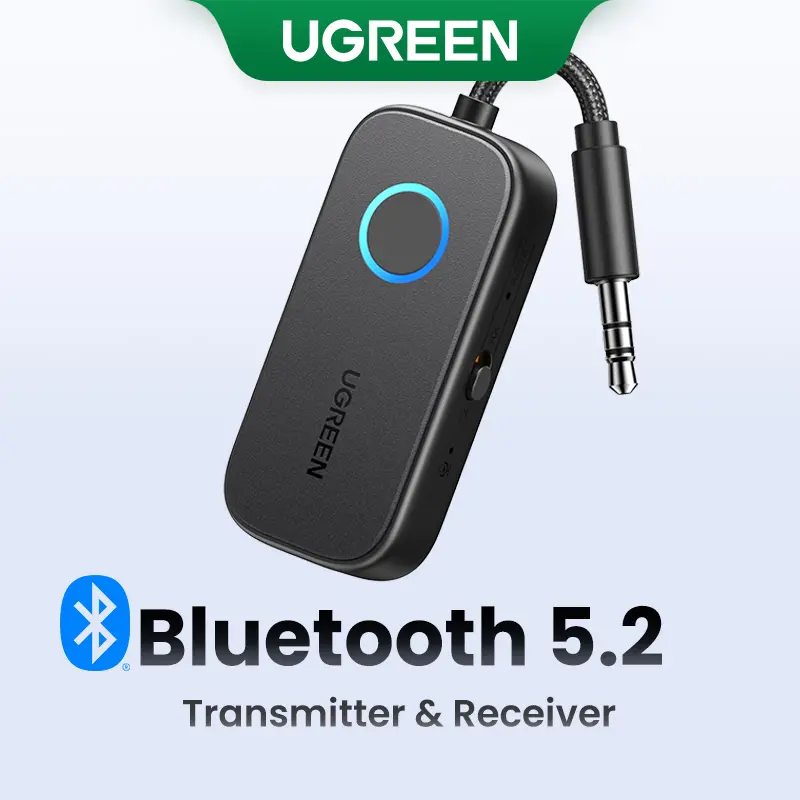



UGREEN.US
UGREEN Bluetooth 5.2 3.5mm Audio Transmitter/Receiver Adapter for Airpods or Headphones, for Flight, TV, Car Stereo, MP3 Headset Microphone-TikTokShopBlackFriday ,TikTokShopHolidayHaul
Free shipping
4.4
2.8K sold$17.99
$23.99ARZOPA TECH
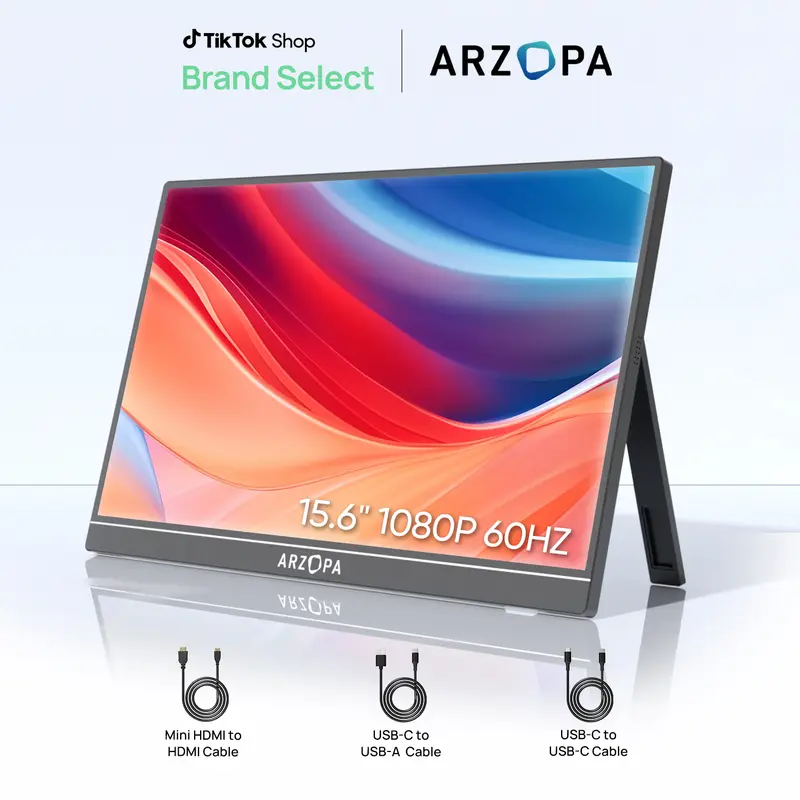
ARZOPA Portable Monitor 15.6'' 1080P 60Hz&144Hz FHD Laptop Monitor USB C HDMI Computer Display HDR Eye Care External Screen for PC Mac Phone Xbox Switch PS5
Free shipping
4.4
41.4K sold$74.99
$149.99
dot. cards
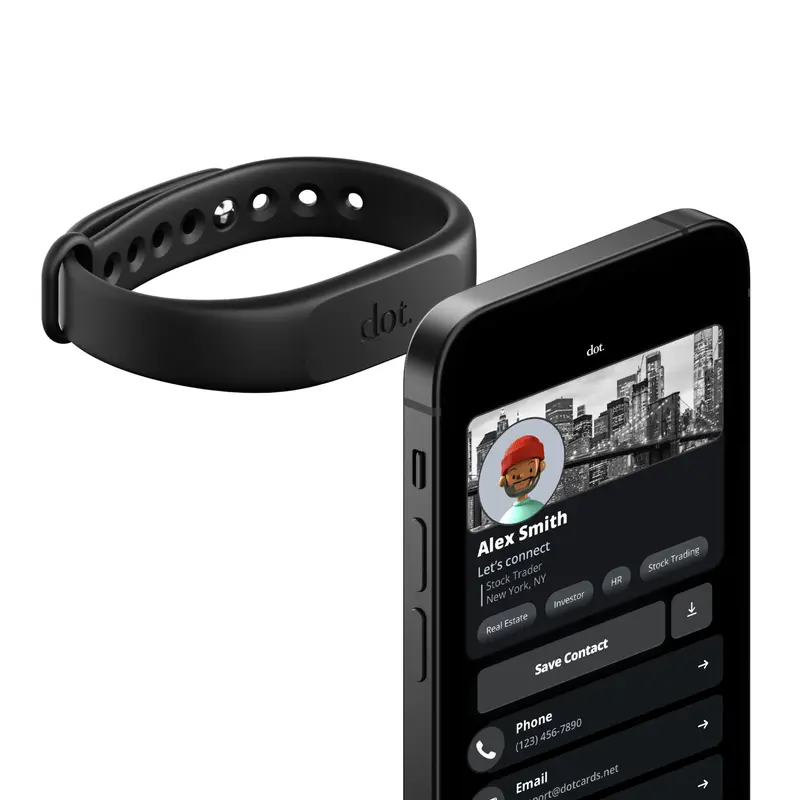
dot. Band - Digital Business Card - Tap to Share NFC - iPhone & Android Wearable
4.4
37.1K sold$18.91
$30.00HUANUO Global
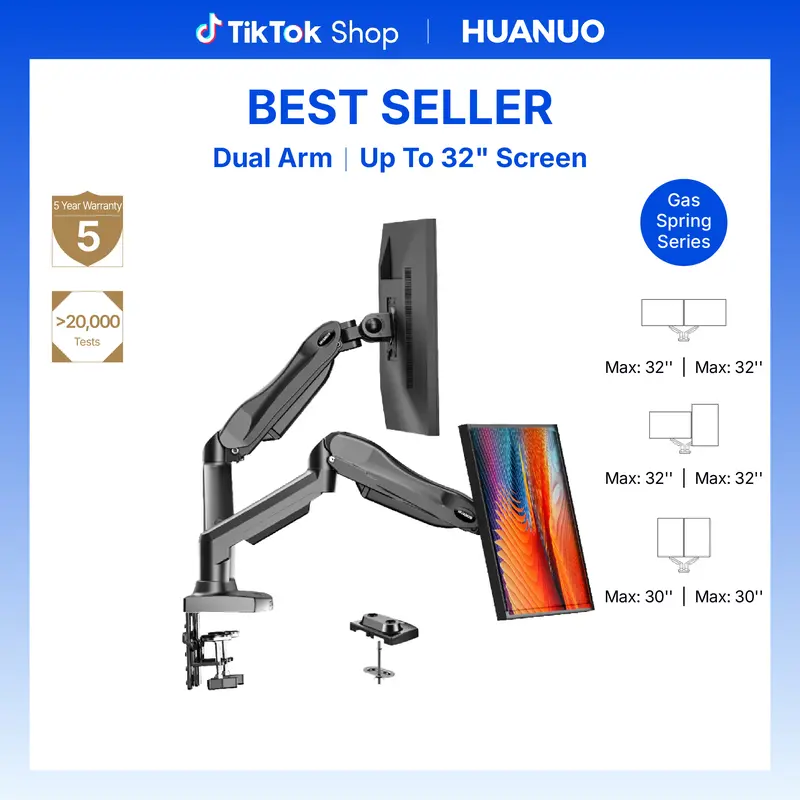
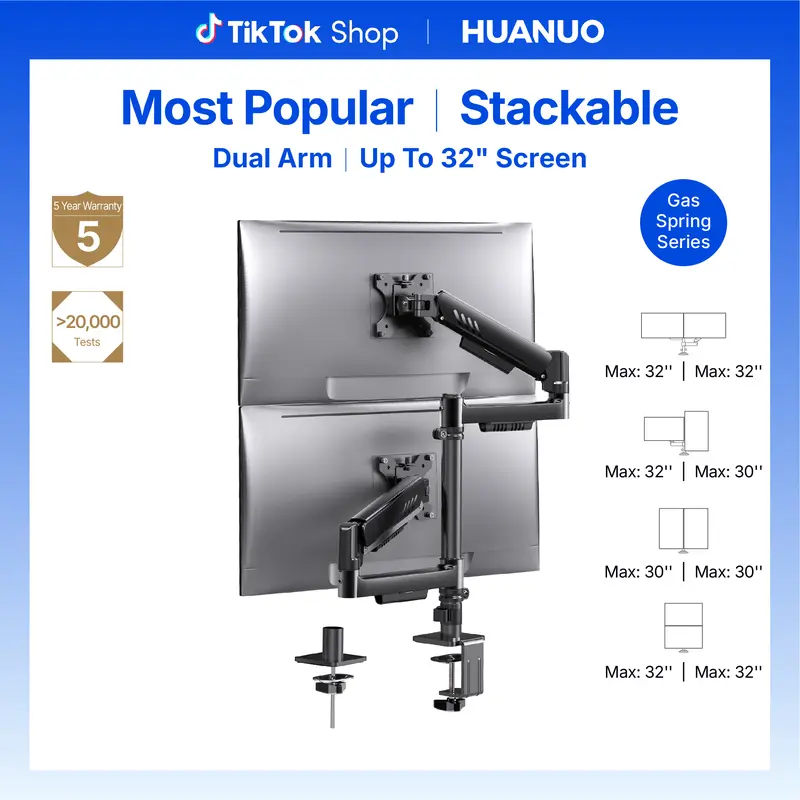
HUANUO Dual Monitor Arm Adjustable Gas Spring Monitor mount for Gaming and Home Office Setups, Monitor Arm hold up to 30" with 19.8 lbs Max Weight and C-Clamp or Grommet Hole Mounting
Free shipping
4.6
109.9K sold$36.99
$59.99

HUANUO Global
HUANUO Supports 13-32″ screens, up to 19.8 lbs per arm. Features built-in C-clamp, enhanced stability, and upgraded cable management. VESA 75x75mm/100x100mm compatible. Black finish.
Free shipping
4.7
13.2K sold$49.99
$69.99Mr Pen Store
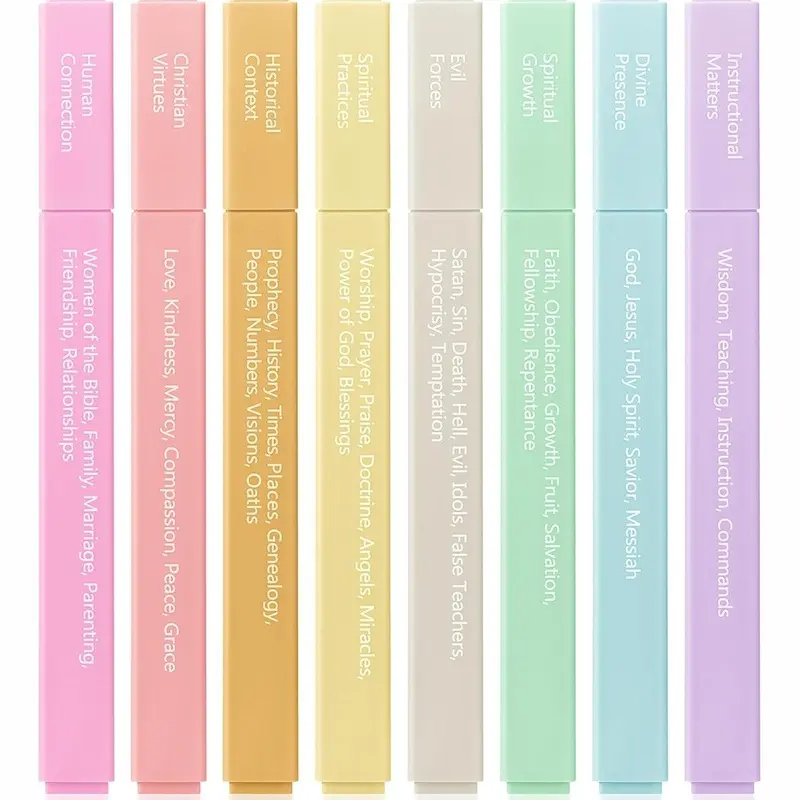
Mr. Pen - Bible Highlighters with Color-Coding System 8 Pack Soft Pastel Aesthetic Highlighters Assorted Colors for Studying Note-Taking and Journaling
Free shipping
4.7
4.0K sold$8.99
$11.99


Redragon Store
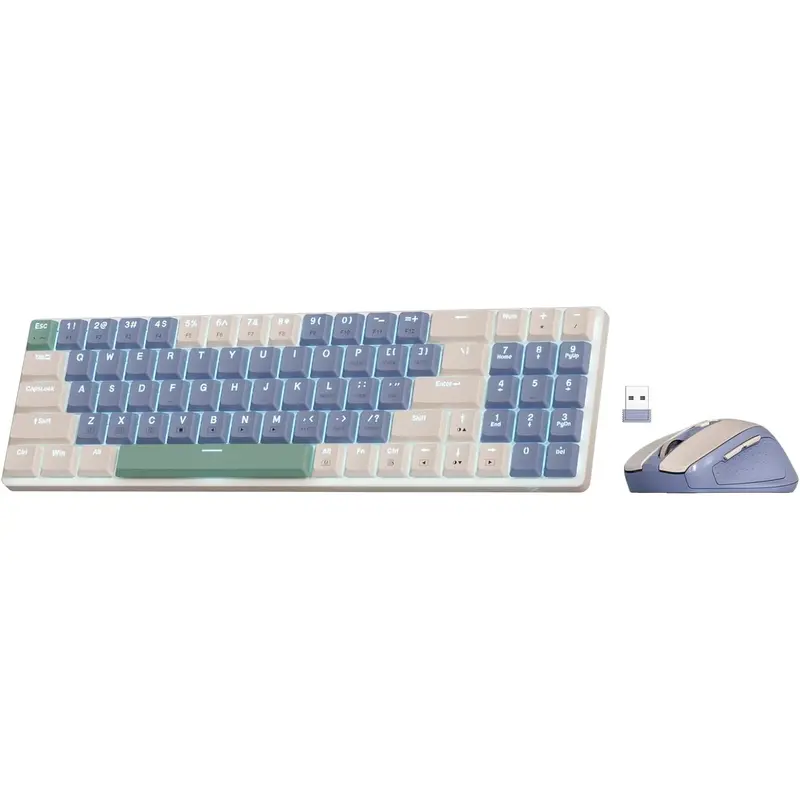
Redragon BS8772 Wireless Ergonomic Keyboard & Mouse Combo 75% 78 Keys 2.4Ghz Low-Profile Mechanical w/Rechargeable Battery 2400 DPI Blue Backlight
Free shipping
4.2
799 sold$31.49
$34.99

View more
TikTok Shop promo codesAbout TikTok ShopSeller centerContact usCareersAffiliateHelp centerSafety centerCommunity guidelinesPrivacy policyTransparencyAccessibility
Free shipping
New customer deals


Shop now in app